Indonesia
 English
 Arabic
 French
 Spanish
 Portuguese
 Deutsch
 Turkish
 Dutch
 Italiano
 Russian
 Romaian
 Portuguese (Brazil)
 Greek
Things to Know Before Buying an Agarwood Fragrance
Other |
2026-10-28 10:40:17
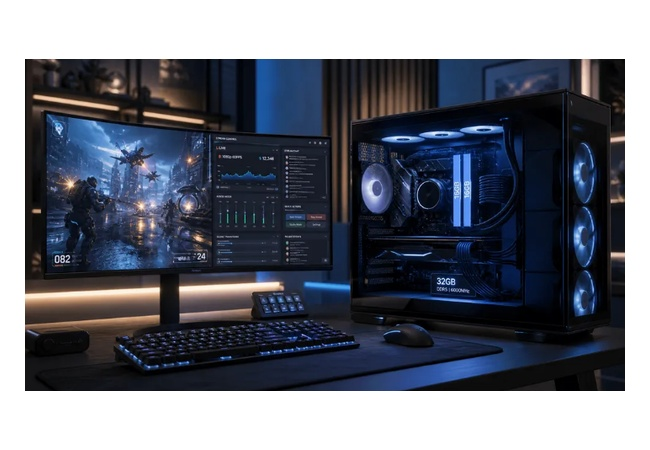
A powerful 3D project can quickly become frustrating when your computer struggles to keep up with demanding tasks. Slow rendering, unexpected crashes, and delayed previews can interrupt creativity and affect project deadlines. Even experienced artists sometimes overlook workstation issues that gradually reduce performance and productivity. Understanding these common mistakes can help you build a more reliable environment for smoother 3D production.
One of the biggest mistakes in professional 3D production is choosing hardware without considering the demands of specific applications. A Maxon ZBrush workstation for professional 3D workflows needs sufficient processing power, memory, and storage to handle complex models, detailed sculpting, and large projects. Selecting components based only on price can create performance limitations that become increasingly noticeable as projects grow.
Similarly, artists should consider how their hardware supports their entire production pipeline rather than focusing on one specification. A balanced workstation helps prevent bottlenecks between the processor, graphics card, and memory. Investing in suitable components from the beginning can save valuable time and reduce the need for frequent upgrades.
Memory plays an essential role in maintaining smooth performance during demanding creative sessions. Complex scenes, high-resolution textures, and multiple open applications can consume considerable RAM. When available memory becomes insufficient, the system may rely on slower storage, resulting in longer loading times and frustrating interruptions.
Artists should evaluate their typical project sizes before deciding how much memory they need. It is important to choose sufficient RAM to handle complex models and large scenes while avoiding unnecessary applications during demanding production tasks. Monitoring memory usage when working with multiple assets can also help identify potential performance issues. If projects consistently exceed available memory capacity, upgrading RAM may be necessary. However, artists should always check motherboard compatibility before purchasing additional memory.
Adequate memory allows applications to manage demanding workloads more efficiently. It also makes switching between creative tools considerably easier.
The graphics card directly affects viewport responsiveness, visual previews, and rendering performance. Choosing an underpowered GPU can make working with detailed environments unnecessarily difficult. Artists may experience delayed viewport updates, slower shader previews, and reduced performance when handling complex lighting or high-resolution assets.
For GPU-intensive workflows, selecting a Maxon Redshift standard edition workstation requires careful attention to graphics capabilities and compatibility. Consider GPU memory, supported technologies, cooling requirements, and application specifications before making a decision. A suitable graphics card can improve the overall experience, particularly when projects involve sophisticated materials, effects, and lighting setups.
High-performance components generate considerable heat during intensive sculpting, rendering, and simulation tasks. Poor airflow, accumulated dust, and inadequate cooling can cause temperatures to rise beyond recommended operating levels. When this happens, processors and graphics cards may reduce their operating speeds to protect themselves.
Regular maintenance helps prevent unnecessary thermal problems. Clean dust filters, inspect fans, and ensure that cables do not obstruct airflow. Artists should also monitor component temperatures during extended workloads. Maintaining a suitable operating temperature supports consistent performance, improves hardware reliability, and reduces the likelihood of unexpected slowdowns during important production sessions.
Hardware performance depends on more than physical specifications. Outdated graphics drivers, incompatible software versions, and neglected operating system updates can introduce stability issues. These problems may appear as rendering errors, application crashes, unexpected visual glitches, or poor compatibility with newer creative features.
Keeping the software environment updated helps maintain a dependable production setup. However, installing every available update immediately is not always the best approach. Check application compatibility, review driver release notes, and test important updates before using them in active projects. Maintaining stable software versions can prevent disruptions and keep demanding workflows predictable.
Even an excellent workstation cannot compensate for an inefficient production process. Poor file management, excessive background applications, and unnecessarily complicated project structures can waste valuable resources. Artists who frequently switch between large scenes without closing unused files may also experience avoidable memory and performance issues.
Maintaining an organized workflow is essential for improving daily productivity. Artists should organize their assets into clearly named project folders and regularly remove unnecessary temporary files and unused applications. Closing background programs that consume significant system resources can also help maintain smooth performance. Using consistent naming conventions for models and textures makes files easier to locate and manage. Additionally, saving incremental project versions helps protect ongoing work and reduces the risk of losing important progress.
An organized workflow makes collaboration easier and reduces the time spent troubleshooting basic problems. It also helps artists focus on creative decisions instead of administrative tasks.
Technology evolves quickly, and production requirements continue to increase as software becomes more advanced. A workstation that performed well several years ago may struggle with modern rendering engines, complex simulations, and increasingly detailed assets. Continuing to use outdated components without evaluating their limitations can gradually reduce productivity.
Rather than replacing an entire system unnecessarily, identify the components responsible for performance bottlenecks. Upgrading RAM, storage, or the graphics card may provide meaningful improvements. A planned upgrade strategy helps businesses control expenses while ensuring their workstations remain capable of handling changing production demands.
For artists and studios planning their next investment, working with an experienced hardware provider can simplify the decision-making process. Cloud Ninjas helps professionals explore workstation hardware options that support demanding creative environments. By prioritizing performance, reliability, and future requirements, 3D artists can build systems that keep production moving smoothly. The right workstation is not simply about impressive specifications; it is about creating a dependable foundation for better creativity, consistent output, and long-term productivity.